How Padcraft works
Padcraft turns a web page into a live picture of your controller. Here is what happens between your hands and your stream, what your link contains, and what you pay for.
What happens between your controller and your stream?
- Your controller sends its inputs to your PC, by cable or wireless.
- The browser exposes them through the Gamepad API, a web standard that lets a page read which buttons are pressed, how far each trigger is pulled and where each stick points.
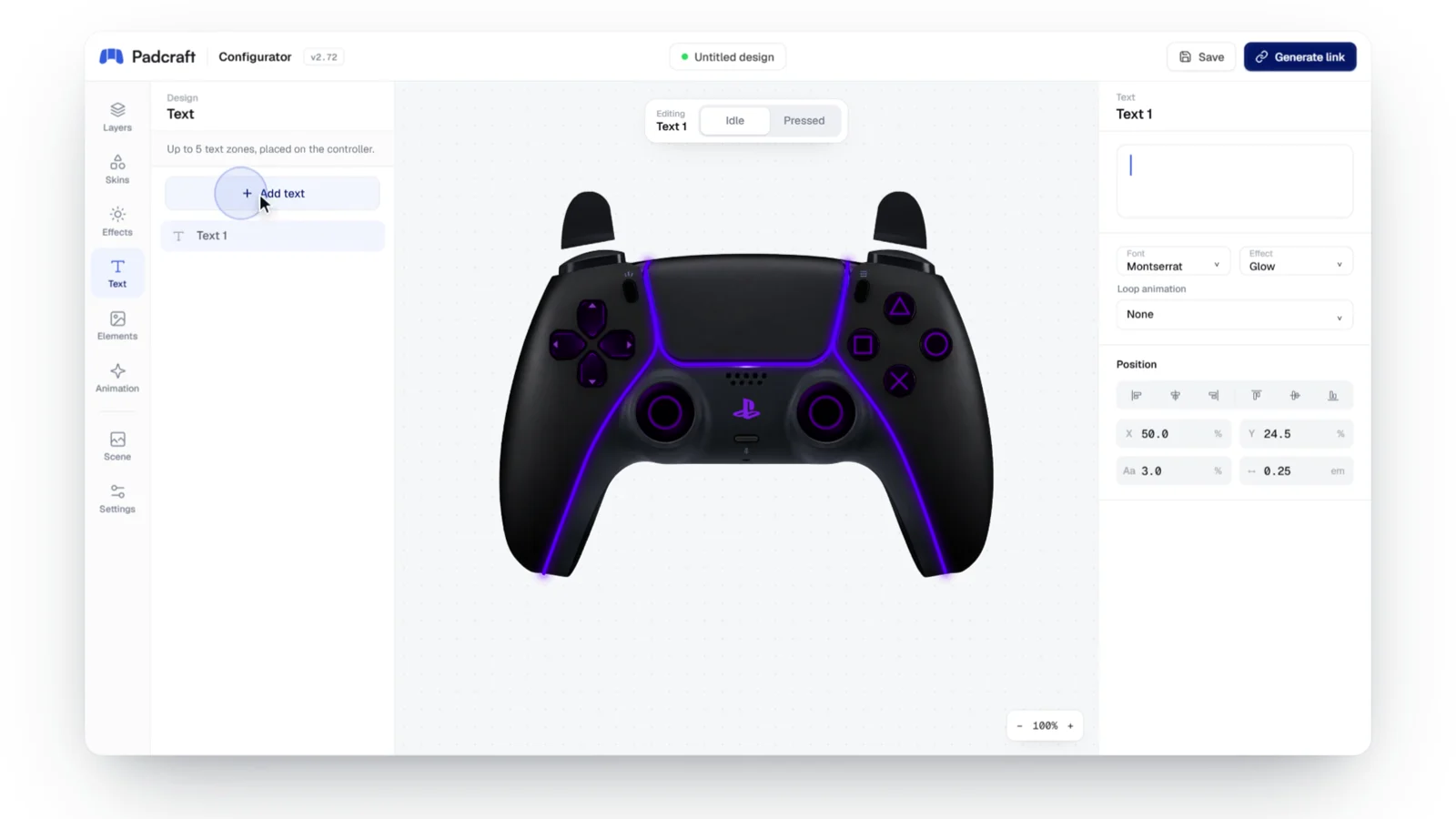
- Padcraft's rendering engine turns those inputs into your design, frame after frame: the controller model, the trigger pressure, the stick travel and every layer you added in the configurator, such as colors, skins, text, light strips and animations.
- Your streaming software places that page, drawn on a transparent background, on top of your gameplay and sends it to Twitch, Kick, YouTube or TikTok.
Nothing is installed on your PC. The overlay runs in the browser that your streaming software already includes, and it is part of your video before it leaves your computer, which is why it looks the same on every platform.
How do I go from a design to my stream?
A first setup with a DualSense and OBS takes about fifteen minutes:
- Open the configurator, plug the controller in by USB and press a button. Pick the PS5 model, or start from a design in the shop. The preview now reacts to every input.
- Set the shell and button colors, add your name or logo, then open the Preview tab to see exactly what your stream will show.
- Choose Generate link and pay once, $4.99 for a static design.
- In OBS, add a Browser Source with the link, place it in a corner and record a short test. The setup guide covers OBS, Streamlabs and TikTok LIVE Studio.
Later changes to the design or its settings go to the same link, so the scene in OBS never needs to be touched again.
What does my overlay link contain?
The link stores your design, so the overlay looks the same every time you go live, on any computer, with a transparent background and nothing to crop or key out. It also stores the link settings: stick movement, dead zones, trigger fill and when the controller hides itself.
Each link works on up to 2 devices, for example your streaming PC and a spare, and includes 5 design changes, or 10 for an animated design. A change counts only when you apply a new version to the link. Editing and previewing never count, and once the changes are used, the link keeps working with its last design. Manage your overlay links explains the device and change counters in detail.
What is free and what is paid?
Designing and previewing in the configurator cost nothing. You pay once for each overlay link, with no subscription.
| Option | Price | What you get |
|---|---|---|
| Free | $0 | A realistic PS5, PS4 or Xbox controller from the shop, published as it is, without design changes. |
| Static | $4.99, paid once | A shop design, or your own design, that reacts to every button, with its own overlay link. |
| Animated | $7.99, paid once | A design with animated layers, flowing light strips or looping text, with its own overlay link. |
| Partners | Free to join | For approved partners: a 25% commission on every sale made with their code, and free designs. |
The shop lists designs made by the Padcraft team and its partners. You can buy one as it is, or open it in the configurator, adjust it and publish it as your own link. Prices can change, and the pricing page always shows the current rates.
What does the overlay not do?
- It does not touch your game. The page only reads the controller, so the game receives exactly the same inputs, with or without the overlay, and no added input lag.
- It does not read your keyboard or your mouse, only controllers.
- It needs no install or update. The link always loads the current version of the engine and of your design.
- It shows nothing but your controller. The only exception is a short Padcraft animation, shown at startup and after 20 seconds without input, which is always on for free shop designs and optional on every other link.
Which browsers and software can run it?
Chrome, Edge, Firefox and Safari all support the Gamepad API. OBS Studio and Streamlabs display web pages through a built-in Chromium browser, and TikTok LIVE Studio accepts the same kind of browser source, so one link works in each of them. When a controller behaves differently, the cause is usually how the controller presents itself to the browser, covered in Wrong buttons on the overlay.
How often does the overlay update?
Once per rendered frame. Your controller reports its state many times per second: about 125 times for an Xbox controller, 250 times for a PlayStation controller over USB, and 1000 times or more for controllers built for PC. The page does not draw every report. Like any web page, it reads the controller once per frame and draws its latest state.
On a 60 FPS canvas the overlay therefore refreshes 60 times per second, which is all your viewers can see. That is why the Browser Source frame rate matters more than the report rate of your controller, which you can measure with the controller latency test.
Plug in your controller and design your overlay in the configurator.
Create my overlay